


Migrating from Microsoft Hyper-V to VMware ESXi is a strategic decision influenced by factors such as performance, management capabilities, scalability, and ecosystem compatibility.
| Factor | Hyper-V | VMware ESXi |
| CPU Overhead | Slightly higher | Lower overhead |
| Memory Management | Decent (Dynamic Memory) | Advanced (TPS, Ballooning) |
| Disk I/O Efficiency | Standard | Optimized (VAAI, VMFS) |
| Networking | Good | Advanced (vDS, SR-IOV) |
| Scalability | Good | Excellent (vMotion, DRS) |
Factors to Consider:
1. Performance & Resource Efficiency
- ESXi is a thin hypervisor (~150MB footprint), whereas Hyper-V runs alongside a full Windows Server installation.
- Windows Server’s background services consume RAM and CPU, even if they are unrelated to virtualization.
2. Management & Automation
- vCenter Server provides centralized management for multiple ESXi hosts, whereas Hyper-V requires System Center Virtual Machine Manager (SCVMM), a separate product.
- VMware offers advanced automation tools like PowerCLI, vRealize, and API-driven automation.
3. High Availability & Fault Tolerance
- VMware’s Fault Tolerance (FT) provides zero-downtime protection for critical applications, while Hyper-V relies on failover clustering, requiring additional configuration.
- VMware DRS (Distributed Resource Scheduler) dynamically balances workloads across hosts, a feature not natively available in Hyper-V.
4. Licensing & Cost Considerations
- VMware ESXi Free offers more features than Hyper-V Free.
- Hyper-V requires Windows Server Datacenter edition for unlimited VM licensing, which can be expensive for large deployments.
- VMware licenses can be costly, but for high-density VM environments, they can be more cost-effective.
5. Cross-Platform & Cloud Compatibility
- VMware offers better support for Linux and macOS guest OS.
- VMware Cloud solutions integrate well with AWS, Google Cloud, and Azure, whereas Hyper-V is primarily Azure-focused
6. Backup & Disaster Recovery
- VMware’s backup solutions are better integrated and faster than Hyper-V snapshots, which can degrade performance.
- VMware SRM (Site Recovery Manager) provides enterprise-level disaster recovery solutions.
Comparison of Migration Methods
| Method | Automation | Downtime | Ease of Use | Cost | Best for |
| VMware vCenter Converter | ✅ Yes | ⏳ Some | ⭐⭐ | Free | Small to medium migrations |
| VMware HCX | ✅ Yes | ⏳ Minimal | ⭐⭐⭐ | Requires license | Enterprise & multi-cloud migrations |
| Veeam Backup & Restore (instant recovery) | ✅ Yes | ⏳ Minimal | ⭐⭐⭐ | Paid | Large-scale & low-downtime migrations |
| StarWind V2V | ✅ Yes | ⏳ Some | ⭐⭐ | Free | Small-scale migrations |
| Manual Export & Convert | ❌ No | ⏳ High | ⭐ | Free | Small, offline migrations |
| Azure Site Recovery | ✅ Yes | ⏳ Minimal | ⭐⭐⭐ | Paid | Hybrid & cloud migrations |
The next section outlines two frequently used migration strategies:
1. Using VMware vCenter Converter

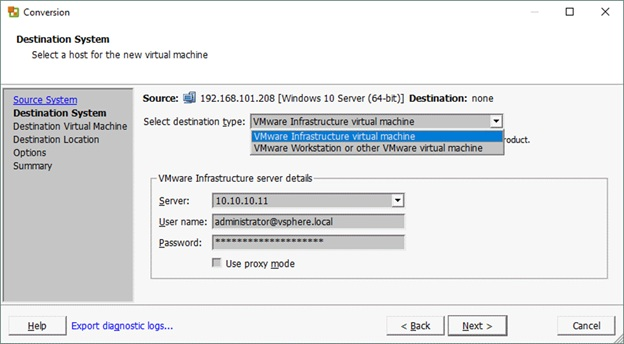
- Download VMware vCenter Converter.
- Open the tool and click “Convert Machine”.
- Choose Hyper-V Server as the source.
- Enter the credentials and select the VM.
- Choose VMware Workstation, vSphere, or ESXi as the destination.
- Start the conversion and wait for completion.
2. Using Veeam Instant VM Recovery

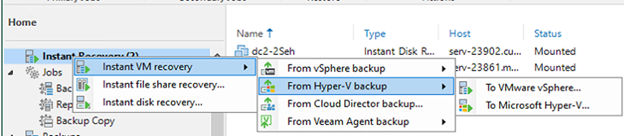
- Ensure you have a backup of the Hyper-V VM in Veeam.
- Open Veeam Console and navigate to Backup & Replication.
- Select Instant Recovery → Instant VM Recovery to VMware.
- Choose the Hyper-V backup from the repository.
- Select the VMware ESXi host as the target.
- Specify Compute Resources (CPU, RAM, and Storage).
- Click Start Recovery – The VM will instantly boot in VMware.
Additionally, PowerShell scripting can be leveraged to automate the migration process.
Common Issues & Solutions related to migration:
| Issue | Solution |
| Low Performance with E1000 Network Model | Switch to the VMXNET model. |
| Latest VMware Tools Version Causes Issues | Downgrade to a previous version of VMware Tools. |
| Hyper-V VM Backup Issues | Reboot Hyper-V to install any pending Windows updates(for Win VM’s) and shut down the VMs before taking a Veeam backup to ensure data consistency. |
The choice of migration method ultimately depends on your organization’s environment, acceptable downtime, and cost considerations. Each approach offers unique advantages, and selecting the right one requires careful evaluation of your infrastructure, business needs, and operational constraints.
Migrating from Microsoft Hyper-V to VMware ESXi can significantly improve virtualization performance, scalability, operational efficiency, and business continuity when planned and executed correctly. The right migration approach depends on your existing infrastructure, application requirements, acceptable downtime, and long-term IT strategy. By carefully evaluating your environment and selecting the appropriate migration tools and best practices, organizations can minimize risks while maximizing the value of their VMware investment.
Whether you’re planning a small-scale virtualization upgrade or a complex enterprise migration, having the right expertise can make all the difference. At Nuventure, we help businesses modernize their IT infrastructure with secure, efficient, and low-disruption virtualization and cloud migration services. Our experts work closely with your team to assess your environment, design the optimal migration strategy, and ensure a seamless transition that aligns with your business goals. Contact Nuventure today to discover how we can help accelerate your virtualization journey with confidence.